You have a PDF — a programme, a zine, a manual, a set of notes — and you want it to come out of the printer as a folded booklet. Whether that takes one setting or two steps depends on which program you print from. Acrobat Reader and Word can arrange booklet pages themselves; Preview on a Mac, Chrome and Edge can’t, and need a booklet-ready PDF first.
This guide gives the exact settings for each, the single setting that ruins most first attempts, and a table of fixes when a booklet comes out wrong. If you’re starting from scratch and want to plan page count and paper size, read how to make a booklet from a PDF first.
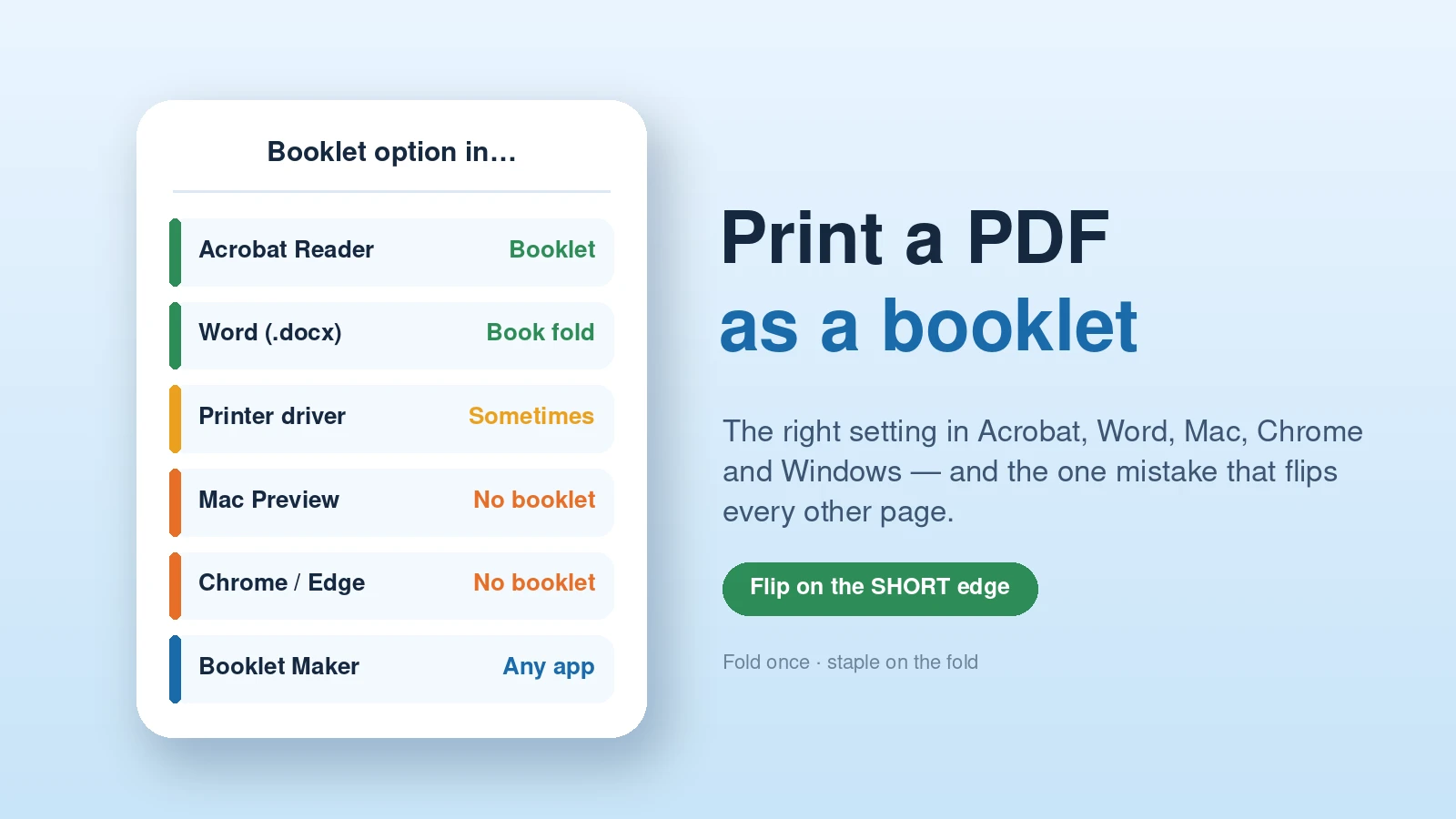
- Acrobat Reader: Print → Page Sizing & Handling → Booklet, both sides.
- Mac, Chrome, Edge: make a booklet PDF with the Booklet Maker, then print it at 100%.
- Everywhere: double-sided, flip on the short edge. Print one sheet and check before printing the rest.
Why a booklet needs special printing
A booklet is sheets folded once down the middle. Each sheet carries four pages, two on each side, and the outer sheet holds the first and the last page. So pages can’t print in order: an 8-page booklet needs 8 | 1 and 2 | 7 on the first sheet, 6 | 3 and 4 | 5 on the second. Rearranging pages like this is called imposition. Either the print dialog does it (Acrobat, Word, some drivers) or you do it beforehand by making a booklet PDF.
Printing from Adobe Acrobat Reader
The free Acrobat Reader has a built-in booklet mode — the easiest route if it’s installed.
- Open the PDF and choose File → Print.
- Under Page Sizing & Handling, click Booklet.
- Set Booklet subset to Both sides if your printer prints double-sided. If it doesn’t, print Front side only, put the paper back, then print Back side only.
- Leave Binding on Left for left-to-right languages.
- Check the preview: the first sheet should show the last page next to page 1.
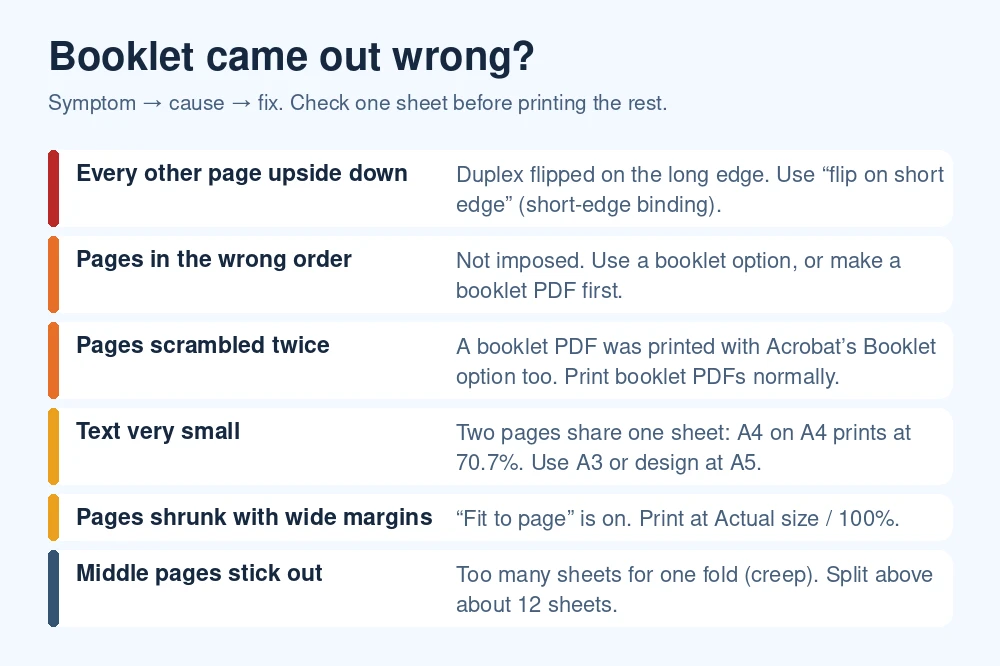
One trap: if the PDF is already a booklet — made with a booklet maker — don’t choose Booklet in Acrobat. The pages get rearranged a second time and come out scrambled. Print it like any other PDF.
Printing from Word
If you still have the Word file, let Word do the imposition: Layout → Margins → Custom Margins, and under Multiple pages choose Book fold. Word switches to landscape and arranges the pages when you print. Choose the paper you’ll print on — on A4, each page becomes A5-sized. Then print double-sided, flipping on the short edge. If you need to send the booklet as a PDF instead, export a normal PDF and run it through the Booklet Maker.
Printing on a Mac, or from Chrome and Edge
Preview, Chrome and Edge print pages in order and have no booklet option. Make a booklet PDF first — the Booklet Maker does it in your browser without uploading the file — then print that PDF normally:
- Preview: File → Print, Scale 100%, Two-Sided with short-edge binding (in the Layout section if it isn’t on the main panel).
- Chrome / Edge: Ctrl/Cmd+P, Scale Actual size (or Custom 100), two-sided with flip on short edge. If that option is missing, choose Print using system dialog and set it in the printer’s properties.
Some printer drivers — on Windows and on the Mac — have their own Booklet setting in the printer properties or the printer-features menu. If yours does, it works from any program, Preview and Chrome included. Look before you assume it isn’t there.
Find your settings
Pick your program and printer to get the steps:
Booklet print settings for your setup
Menu names differ slightly between versions and printer drivers; look for the closest match.
The setting that ruins most booklets
Double-sided printers can turn the sheet over two ways. Flip on long edge is the default and is right for normal portrait documents. A booklet sheet is printed landscape, so it must be turned over the other way — flip on short edge, sometimes called short-edge binding or tumble. Get it wrong and every back side comes out upside down. It’s the single most common booklet mistake, and the reason to print one test sheet first.
Paper, size and stapling
- Text size. Two pages share a sheet, so an A4 page printed on A4 paper shrinks to 70.7% — 11 pt type comes out at 7.8 pt. Print on A3 (or 11 × 17 in) for a full-size booklet, or design the pages at A5.
- Thickness. About 10–12 sheets (40–48 pages) fold and staple neatly. Beyond that, split the document into two booklets.
- Stapling. Fold the whole stack together, then staple on the fold — a long-reach stapler makes it easy.
The short version
In Acrobat Reader, use the Booklet option. Everywhere else, make a booklet PDF first and print it at 100%. In both cases print double-sided and flip on the short edge — and check one sheet before you print the lot.
Frequently asked questions
How do I print a PDF as a booklet?
In Adobe Acrobat Reader choose Print → Page Sizing & Handling → Booklet and print on both sides. In other programs, first turn the PDF into a booklet PDF with a booklet maker, then print it double-sided, flipping on the short edge, at 100% scale.
Can I print a booklet from Mac Preview?
Not directly — Preview has no booklet option. Make a booklet PDF first, then print it from Preview with two-sided short-edge binding at 100%. Some printer drivers add their own Booklet setting, which also works.
Why is every other page upside down?
The printer flipped the sheets on the long edge. Booklet sheets are landscape and must flip on the short edge (short-edge binding, tumble).
Why are my booklet pages scrambled?
Either the pages were never arranged for a booklet, or they were arranged twice — a booklet PDF printed with Acrobat’s Booklet option. Use one or the other, not both.
Can I print a booklet without a duplex printer?
Yes. Print the front sides first (odd pages, or Acrobat’s Front side only), put the stack back in the tray, then print the back sides. Test with one marked sheet to learn which way the paper must go back in.
Keep reading: How to make a booklet from a PDF · Reorder pages in a PDF · Merge PDF files