A booklet is the nicest way to print an event programme, a zine, a recipe collection, a manual or a set of study notes: sheets folded once down the middle and stapled on the fold. The catch is that the pages can’t be printed in order. On the outermost sheet, page 1 sits next to the last page — and getting that arrangement right by hand is where most first attempts end up in the recycling bin.
A booklet maker does the arranging (printers call it imposition) for you. Below: how it works, what we measured when we ran a document through ours, the one setting that decides whether your text stays readable, and how to print it so it folds correctly the first time.
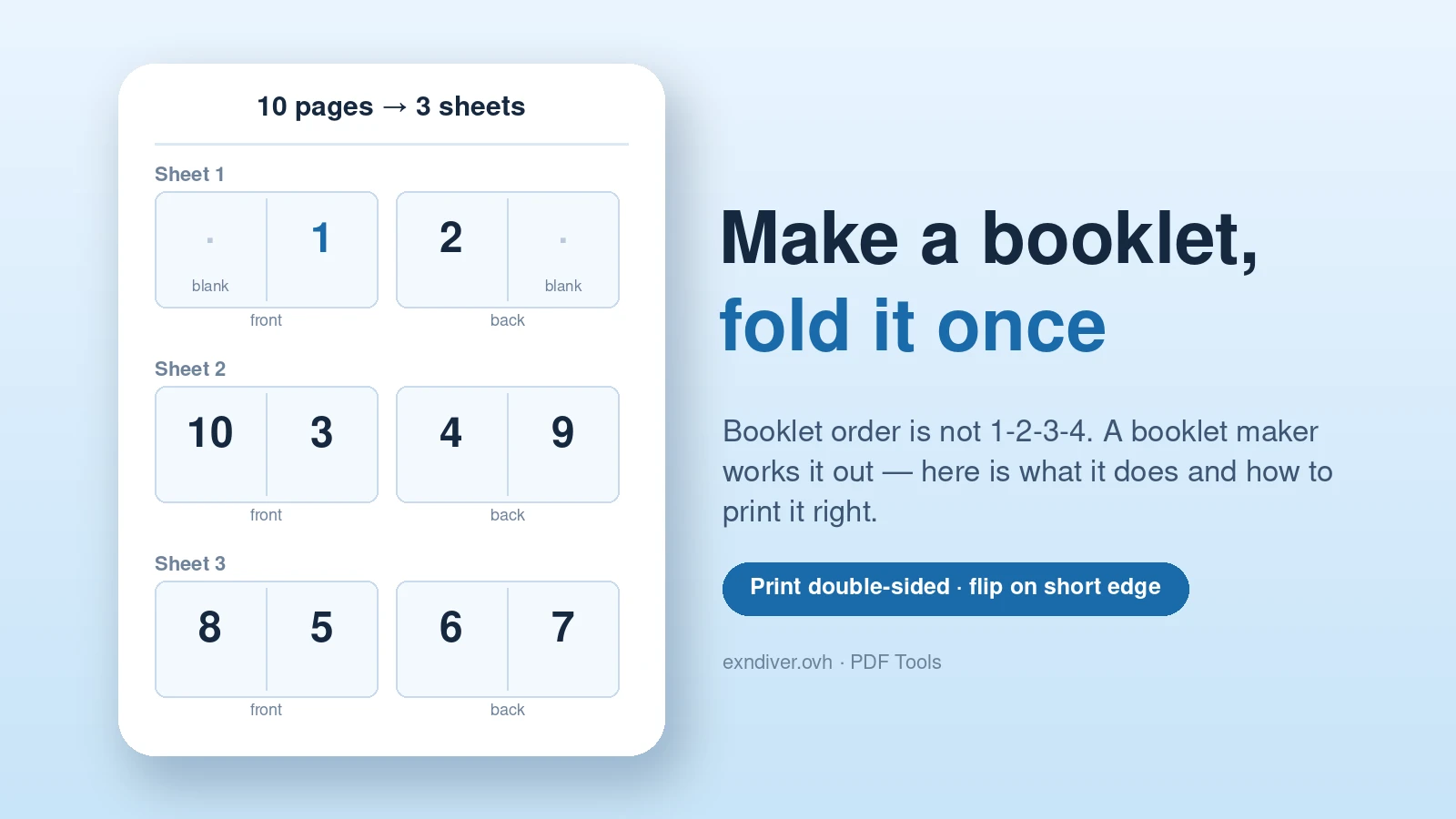
- Drop your PDF into the Booklet Maker and choose the sheet size you’ll print on.
- Print the result double-sided, flip on short edge, at 100% / actual size.
- Stack the sheets in order, fold down the middle, staple on the fold.
Watch the text size: an A4 document on A4 sheets prints at 70.7% scale, so 11 pt becomes 7.8 pt.
Why booklet pages print “out of order”
Fold one sheet in half and you get four pages: the front of the sheet holds the back cover and the front cover, the inside holds pages 2 and 3. Nest a second sheet inside and it carries pages 3–6 of an 8-page booklet, pushing everything outward. So the outermost sheet always pairs the first page with the last, the next one in pairs the second with the second-to-last, and so on.
That’s why the page count must be a multiple of four — every sheet holds exactly four pages. If yours isn’t, the booklet maker adds blank pages at the end. Our 10-page test document became 12 pages on 3 sheets, with the last two (inside back cover and back cover) left blank.
Step by step with the Booklet Maker
- Open the Booklet Maker and add your PDF. It detects the page size (A4, Letter and so on); override it if the detection is wrong.
- Choose the output sheet — the paper you’ll actually print on. Two document pages go side by side on each sheet.
- Keep Fit scaling for documents (the whole page shows, with a little margin); Fill covers the half-sheet and trims the edges.
- Leave Add blank pages on unless your page count is already a multiple of four.
- Create and download. The tool tells you how many sheets to print. Each sheet is two pages of the new PDF: front, then back.
Everything runs in your browser — the PDF isn’t uploaded, which is handy for a family recipe book or a members-only programme. The pages are copied as vectors, so text stays sharp at any size.
The setting that decides your text size
Two pages share one sheet, so each page gets half of it. Print an A4 document on A4 paper and each page must shrink to fit an A5 half-sheet. We measured the output:
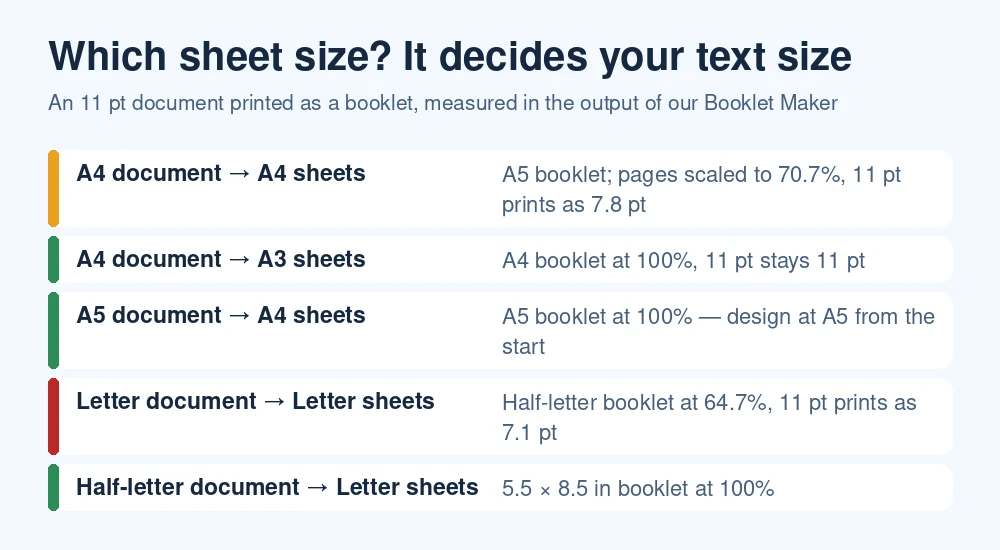
For a programme or a zine with big headings, 70% is fine. For dense text, 7–8 pt is hard going. Three fixes, best first:
- Design the pages at half size from the start: A5 for A4 paper, 5.5×8.5 in for Letter. Then nothing is scaled at all.
- Print on bigger sheets: A4 pages on A3 paper give a full-size A4 booklet. Many copy shops print A3 cheaply.
- Increase the font size in the source document before exporting the PDF — 14 pt body text prints at about 10 pt on A4 sheets.
Plan your booklet
Enter your page count and sizes to see the number of sheets, the blanks, the printed text size and the page order on each sheet.
Booklet planner
Uses the same page order and scaling as our Booklet Maker (fit mode, one fold, blank pages added at the end).
Printing it correctly
- Double-sided, flip on short edge (sometimes called “short-edge binding” or “tumble”). Flipping on the long edge prints every back page upside down — the single most common booklet mistake.
- Actual size / 100%. Turn off “fit to page” or “shrink oversized pages”; the file is already the right size.
- Landscape orientation, which the PDF already has.
- Print one sheet first, fold it and check that page 2 follows page 1. It costs one sheet and saves a ream.
Exact menu names for Acrobat Reader, Word, Mac Preview, Chrome and Edge are in how to print a PDF as a booklet.
If your printer only prints one side
- Print only the odd pages of the booklet PDF (1, 3, 5…) — these are the fronts of the sheets.
- Put the printed stack back in the tray to print on the other side. How you turn it depends on the printer, so test with one sheet: mark the top edge with a pencil before re-feeding.
- Print the even pages (2, 4, 6…).
Folding and binding
- Stack, then fold. Keep the sheets in the order they printed — sheet 1 on the outside — and fold the whole stack at once. Run a ruler or the back of a spoon along the fold.
- Staple on the fold. A long-reach stapler makes this easy; otherwise open the booklet flat on a piece of cardboard, staple through from the outside and bend the legs by hand.
- Mind the thickness. Up to about 10–12 sheets (40–48 pages) folds neatly. Beyond that the middle pages stick out at the edge (printers call it “creep”) and staples struggle; split it into two booklets or use a different binding.
- Paper weight matters. 80–100 g/m² (20–27 lb) works for the inside; a heavier sheet for the cover looks professional but must be printed separately.
Before you make the booklet
Get the content right first, because rearranging pages after imposition is a mess. Put pages in reading order (see reordering PDF pages), add a separate cover by merging it in front with Merge & Split, and remove anything that shouldn’t print (see deleting PDF pages). Then make the booklet as the very last step.
The short version
Let the booklet maker arrange the pages, pick a sheet size that keeps your text readable, and print double-sided flipping on the short edge at 100%. Test one sheet, then print the lot.
Frequently asked questions
How do I turn a PDF into a booklet for free?
Upload it to the Booklet Maker, choose the sheet size you’ll print on, and download the result. Print it double-sided, flipping on the short edge, then fold and staple. It runs in your browser with no upload.
Why do my booklet pages print in the wrong order or upside down?
Pages in the wrong order means the PDF wasn’t imposed — use a booklet maker. Every other page upside down means the printer flipped on the long edge; switch to short-edge flipping.
What if my PDF isn’t a multiple of four pages?
The booklet maker adds blank pages at the end. A 10-page PDF becomes a 12-page booklet on 3 sheets. If you’d rather have the blanks elsewhere, insert them yourself first.
Why is the text so small in my booklet?
Each page is scaled to fit half a sheet. An A4 page on A4 paper prints at 70.7%, and a Letter page on Letter paper at 64.7%. Print on A3 (or tabloid) paper, design at half size, or increase the font size.
How many pages can a stapled booklet have?
About 40–48 pages (10–12 sheets) folds and staples neatly on ordinary paper. Thicker booklets need splitting or a different binding.
Keep reading: Reorder pages in a PDF · Merge PDF files · Delete pages from a PDF