A one-page scan can weigh more than a long text report. In our test, a single scanned page was 5.35 MB. The useful first step was to find out what took up that space, because the answer tells you which changes are worth making.
Diagnose the file before choosing a setting
Open the Document Inspector and select your PDF. Start at Summary. Check its page count, image count and reported reason for the file size. Then look at Images or Fonts to see what the file contains. Keep the original so you have a clean source if you need to start again.
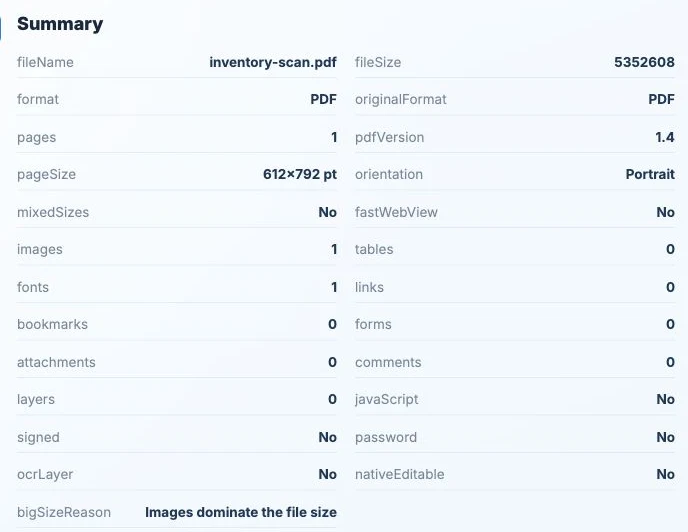
Our demo page was a single 600 DPI raster image with no OCR layer. That explains why a one-page PDF was heavy and why its fine print needed a closer look after compression.
Choose what to change
| What you find | What to try first |
|---|---|
| Large full-page scans | Try a gentler image setting and compare small print against the original. |
| Mostly selectable text | Try lossless cleanup. If the file is already small, keep the original when the output grows. |
| Unneeded pages | Extract the required pages or remove duplicates before compressing. |
The demo scan stayed at about 5.35 MB in Lossless mode and reached 0.39 MB in Balanced mode. These are results from this file. For the settings and same-scale image comparison, see the measured compression walkthrough.
What if the PDF barely shrinks?
Lossless cleanup can save very little when the file is already optimized or most of its size comes from a single compressed image. Open the original again and identify which kind of content takes up space before trying a stronger setting.
- Scanned pages: test a gentler image setting on the original and zoom in on the smallest text. A settings change that works for a photo may make a receipt or a scanned form difficult to read.
- Exported slide decks and brochures: if you still have the source, resize oversized photos or use a smaller export preset there, then export a fresh PDF. Keep a full-quality copy for print.
- Text-heavy reports: small size changes are normal. If the recipient only needs a few sections, extract those pages and check the new file size directly.
Check the smallest details before sending
- Open both versions at the same zoom. Check small text, thin lines and shaded areas.
- If the PDF is for print, print a representative page at its intended size.
- Confirm the page count and test any links, forms or signatures the receiver needs. Use the original and gentler settings if something important changed.
Lossless cleanup preserves image quality. Image downsampling trades detail for a smaller file, and the trade-off is easiest to see in small text on scanned pages.
When to keep the larger original
Keep the original if the PDF needs to remain digitally signed, is your only copy of a scan, or will go to a printer that has specified its own export settings. Save a separate copy for email or a portal. For a fixed upload cap, record the size and settings of the first readable version that fits so you can repeat them on similar files. The compression walkthrough shows how the same settings affected three different types of PDF.
Check where optimization runs
Exndiver PDF Optimize uploads the file for processing. Use an approved offline tool if the document cannot be uploaded. If you only need a few pages, extract those pages first and see whether the new file already fits.