You have a PDF, you need to change one thing, and suddenly you are staring at a paywall. If you have ever wondered how to edit a PDF without buying Adobe Acrobat or handing your file to a random website, this guide is for you. Editing a PDF is easier than most people think — and for the vast majority of everyday tasks you do not need to install a single thing.
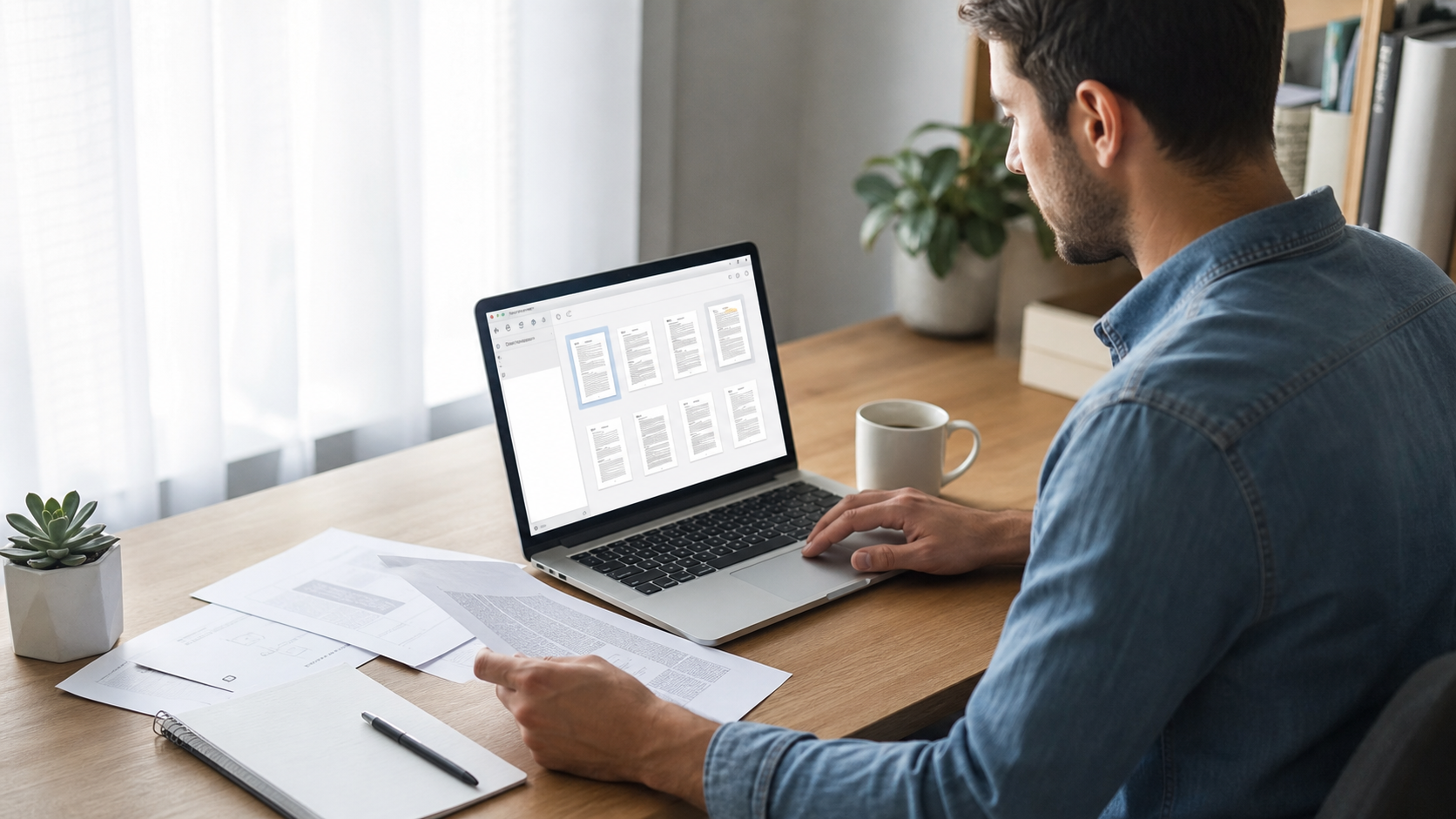
Below is a plain-English walkthrough of the edits people actually make to PDFs, which free tool handles each one, and how to do it in your browser in under a minute — with your file never leaving your device.
What does “editing a PDF” actually mean?
“Edit” is a broad word. In practice, the overwhelming majority of PDF edits fall into one of these buckets:
- Rearranging pages — reorder, delete, rotate, or duplicate pages.
- Combining or splitting — merge several PDFs into one, or pull one PDF apart.
- Changing the file itself — compress it to email it, or convert it to and from Word, images, or other formats.
- Editing the text and images inside a page — the hardest kind, and the one people least often need.
Knowing which bucket your task falls into tells you exactly which tool to reach for. Most people who search for how to edit a PDF really just need one of the first three — and those are the quick wins. The last one, live text editing, is where paid desktop software earns its keep, and we will be honest about that below.
The fastest free ways to edit a PDF
Here is a cheat sheet mapping the common task to the right free tool:
| What you want to do | Tool to use |
|---|---|
| Reorder, rotate, delete or extract pages | Organize PDF Pages |
| Merge several PDFs, or split one apart | Merge & Split PDF |
| Make the file smaller to email or upload | Compress PDF |
| Turn Word, images or slides into a PDF (or back to images) | Document Converter |
| Turn a document into a print-ready folded booklet | Booklet Maker |
Every one of these runs directly on the free PDF Tools hub — no account, no watermark, no queue.
Reorder or remove pages
Open the page organizer, drop your PDF in, and you get a visual grid of thumbnails. Drag pages into a new order, click to rotate a sideways scan, or select the pages you do not want and delete them. Export, and you have a clean file. This is the single most common “edit” people need and it takes about 20 seconds. Because you are working with pictures of each page rather than page numbers, mistakes are rare — you can see exactly what you are moving.
Combine two documents into one
Signed contract plus its cover letter? A scanned form plus your ID? Drop both files into the merge tool, arrange them in the order you want, and download one tidy PDF. Splitting works the same way in reverse — pull out a range of pages or break a big document into chunks that are easier to send or store.
Shrink a file that is too big to send
Email attachments usually cap out around 20–25 MB. A scan-heavy PDF blows past that fast. A compressor re-encodes the images and strips redundant data so the file drops — often by half or more — while staying perfectly readable on screen.
A real example: fixing a scanned contract
Say a colleague scans a five-page contract and emails it to you, but the pages are out of order, page three is sideways, and there is a blank sheet at the end. Here is the whole fix, start to finish, with no software:
- Open the page organizer and drop the scan in — all five pages appear as thumbnails.
- Drag the pages into the right sequence.
- Click rotate on the sideways page until it reads upright.
- Select the blank sheet and delete it.
- Export the clean four-page PDF.
- If it is still large, run it through the compressor before sending.
Three or four different “edits,” one tool, under two minutes — and the file never left your computer. That is the pattern for most real PDF work: small, targeted changes rather than opening a heavyweight editor.
What about editing the actual text in a PDF?
This is the part people underestimate. A PDF is a final-form format: it describes exactly where every letter sits on the page, not the flowing paragraphs a word processor uses. That is why changing a sentence inside a PDF is genuinely fiddly — the tool has to fake a word processor on top of fixed coordinates, and fonts or spacing often shift when you type.
If you need to change more than a few words, the cleaner route is almost always to edit the original (the Word or Google Doc it came from) and re-export to PDF. If you only have the PDF, converting it to an editable document, fixing it there, and converting back is usually less painful than fighting an in-page text editor. For small additions — a date, a name, a checkmark on a form — a browser annotation layer that adds text boxes on top is often all you need, and it leaves the underlying page untouched.
According to the PDF specification, the format was designed to preserve layout across devices — great for sharing, deliberately awkward for reflowing text. Keep that in mind and you will pick the right approach every time.
Why “in your browser” beats uploading to a server
Most free PDF sites work by uploading your file to their servers, processing it there, and letting you download the result. That means your document — which might be a payslip, a medical form, or a contract — sits on someone else’s computer, at least briefly. You are trusting their security, their retention policy, and wherever their servers happen to be.
Browser-based tools work differently. The processing happens inside the web page itself, on your own machine. The file never uploads. Nothing to leak, nothing to delete from a server, nothing cached on a stranger’s disk. For anything with personal or financial information, that difference is not a minor nicety — it is the whole reason to prefer local tools. It also means the tools stay fast: there is no upload wait and no processing queue.
A quick checklist before you edit
- Keep a copy of the original before you start — edits export a new file, but a backup never hurts.
- Match the tool to the task using the table above instead of hunting for an all-in-one editor.
- Do related edits in one pass — reorder, rotate and delete together, then export once.
- Check the page order after merging or splitting — a quick scroll catches mistakes.
- Compress last, after all other edits, so you only shrink the final version.
Conclusion
Editing a PDF for free is mostly about knowing which small tool does the job — organizing pages, merging or splitting, compressing, or converting. None of it requires Acrobat, an account, or trusting a server with your files. Pick your task from the table, open the matching tool on the free PDF Tools hub, and you will be done before a desktop app would have finished installing.
Frequently asked questions
Can I edit a PDF without paying for anything?
Yes. Reordering, deleting, rotating, merging, splitting, compressing and converting PDFs can all be done free in the browser with no account. Only heavy in-page text editing tends to sit behind paid desktop software.
Is it safe to edit a PDF online?
It depends on the tool. Sites that upload your file to a server carry some risk; browser-based tools that process the file locally never send it anywhere, which is far safer for sensitive documents.
How do I edit a PDF without Adobe Acrobat?
Use a free browser tool for the specific change you need — a page organizer, a merge/split tool, or a converter. For text changes, edit the original document and re-export instead of trying to retype inside the PDF.
Why can’t I just type over the text in a PDF?
PDFs store text as fixed positions on the page rather than editable paragraphs, so typing over it often shifts layout or breaks fonts. Editing the source file and re-exporting avoids the mess.
What is the fastest way to edit a scanned PDF?
Use a page organizer to rotate, reorder and delete pages, then compress the result. Changing the text on a scan additionally needs OCR, since the page is an image rather than real text.